
How to Remove Watermark from Photo (AI Method Without Blur)
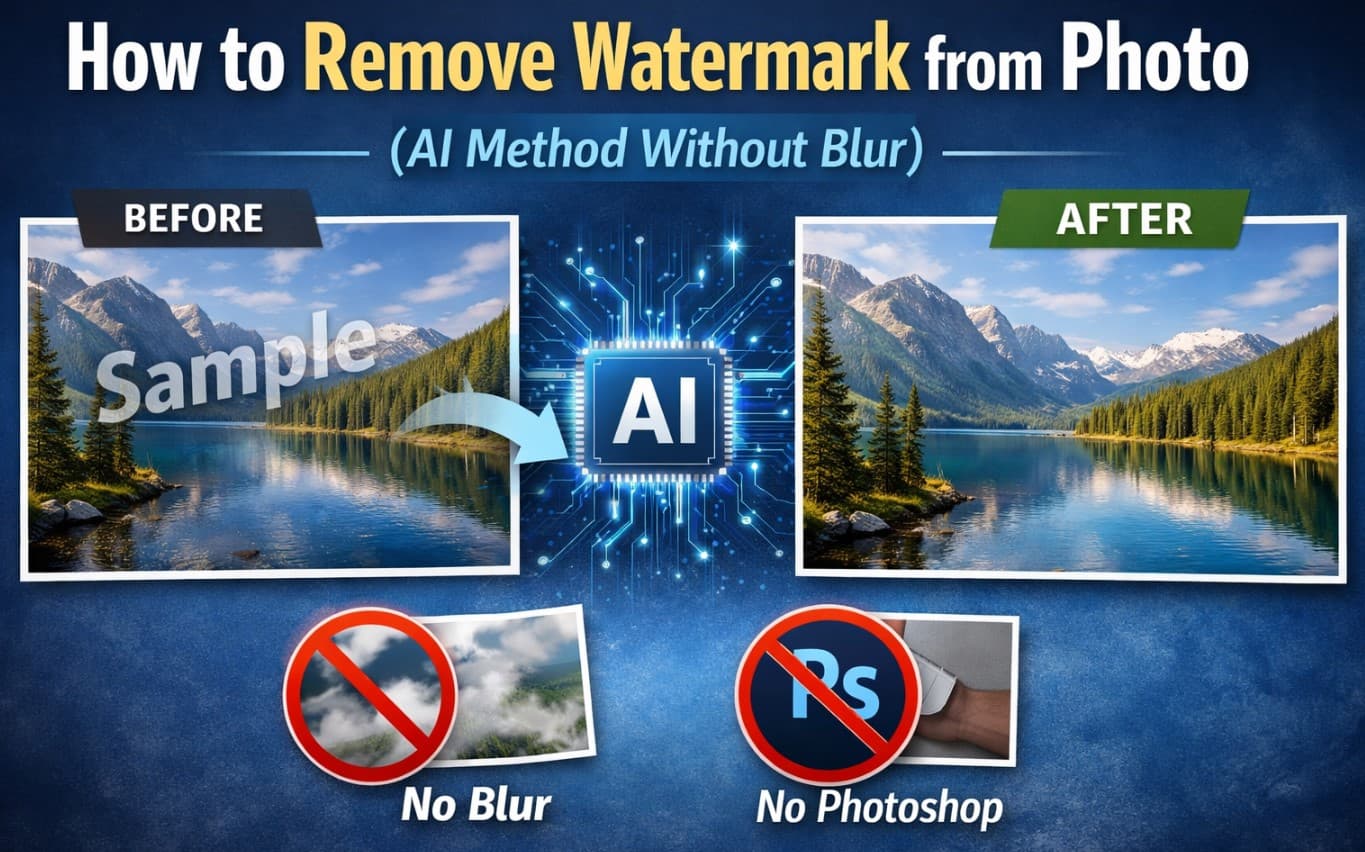
You try to remove a watermark… and end up ruining the photo.
Blurry patches. Weird smudges. Textures that don’t match anything.
If that sounds familiar, the problem isn’t you—it’s the method.
Most tools don’t actually remove watermarks. They just cover them up.
And once you notice it, you can’t unsee it.
The real challenge isn’t deleting the watermark. It’s restoring what was underneath.
That’s exactly where AI tools have changed the game.
Instead of blurring or cloning pixels, they analyze the surrounding area and rebuild the missing content—often in a way that looks completely natural.
In this guide, I’ll show you how to remove watermark from a photo properly, without blur, and without needing advanced editing skills.
Why Most Watermark Removal Methods Fail
A lot of tutorials make this look easy. It isn’t.
Traditional methods rely on:
-
Blur tools
-
Clone stamping
-
Basic content fill
On paper, these sound fine. In practice, they break down quickly.
Here’s why:
-
They don’t understand image structure
-
They can’t recreate missing detail
-
They struggle with lighting and shadows
So instead of removing the watermark, they leave behind something worse—a visible patch.
You’ll especially notice this when:
-
The watermark overlaps textured areas
-
The background isn’t flat
-
There are gradients, shadows, or depth
This is why even experienced users struggle with “clean” results.
The Fastest Way: Remove Watermarks in 3 Simple Steps
If you don’t want to deal with manual editing, there’s a much easier approach.
AI tools like Visualero AI Watermark Remover handle the entire process automatically—no brushing, no selecting, no guesswork.
Step 1. Upload Your Image
Drag and drop your image or click to upload. Supports JPG, PNG, and WebP up to 16MB.

Step 2. Let AI Detect and Remove the Watermark
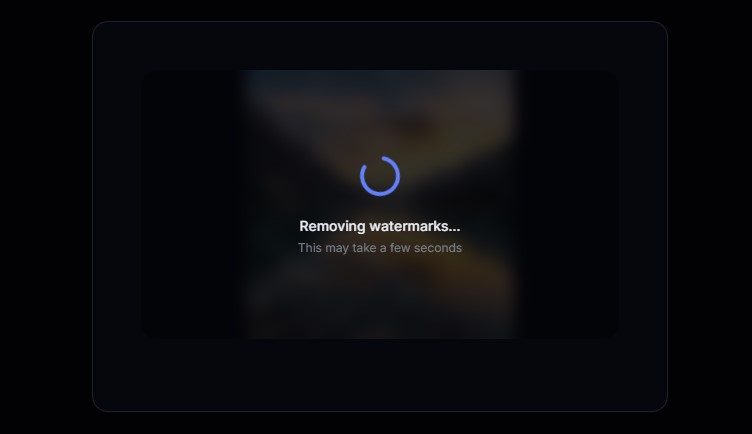
The system automatically identifies text, logos, and overlays, then removes them in seconds.
Unlike traditional tools, it doesn’t just blur the area—it reconstructs the background based on surrounding pixels.
Step 3. Download the Clean Version
Export your image instantly with a natural, watermark-free look.
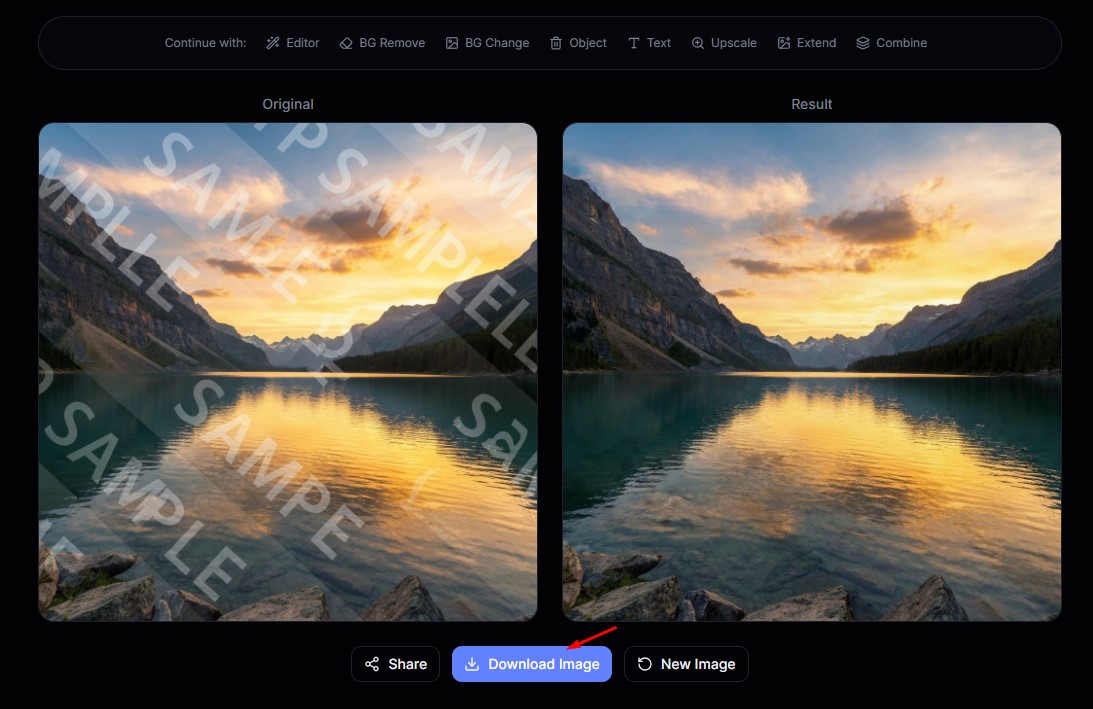 For most images, the entire process takes less than 10 seconds—and requires zero editing experience.
Manual vs AI: What Actually Works Better?
There are really only two ways to remove watermarks today.
Method 1: Photoshop (Manual Editing)
Photoshop gives you full control, but that control comes at a cost.
Pros:
-
Precise adjustments
-
Works for complex edits
-
Industry-standard tool
Cons:
-
Time-consuming
-
Requires experience
-
Easy to make mistakes
-
Still struggles with detailed textures
Even with tools like Content-Aware Fill, results are inconsistent when the background is complex.
Method 2: AI Watermark Remover
AI tools approach the problem differently.
Instead of editing pixel by pixel, they analyze patterns and reconstruct missing areas automatically.
Pros:
-
Extremely fast
-
Beginner-friendly
-
More natural-looking results
-
No manual selection needed
Cons:
-
Less control over fine details
-
May struggle with very large or complex watermarks
For most real-world use cases, AI delivers better results with a fraction of the effort.
When AI Watermark Removal Works Best
AI isn’t magic—but it’s very effective under the right conditions.
You’ll get the best results when:
✅ The watermark is small or medium-sized
Corner logos, light overlays, and simple text are easy to remove.
✅ The background is relatively clean
Sky, walls, soft gradients, and minimal textures work best.
✅ The image has repeating patterns
Grass, sand, or fabric textures are easier for AI to reconstruct.
Where AI Still Struggles
It’s important to set realistic expectations.
AI tools may not perform perfectly when:
❌ The watermark covers important subjects
Faces, eyes, or key objects are difficult to reconstruct naturally.
❌ The background is highly detailed
Crowds, cityscapes, and complex patterns increase error rates.
❌ The watermark is large and layered
Heavy branding or repeated overlays are harder to fully remove.
Even in Photoshop, these cases require manual effort.
Practical Tips for Cleaner Results
If you want noticeably better results, these small adjustments make a big difference.
1. Use the Highest Quality Image Available
More data = better reconstruction.
2. Don’t Expect Perfection in One Pass
Sometimes running the process again improves the output.
3. Avoid Overprocessing
Too many edits can introduce artifacts.
4. Choose Images Strategically
Simpler backgrounds always produce better results.
Related Edits You Can Do at the Same Time
Once you start using AI for watermark removal, you’ll probably find yourself doing more:
-
removing logos
The good part is—the workflow stays the same.
Can You Remove Watermarks Without Photoshop?
Short answer: yes—and in most cases, you should.
Photoshop is powerful, but it’s not always efficient.
AI tools remove the need for:
-
Technical skills
-
Time-consuming edits
-
Trial and error
Instead, you get fast, clean results with minimal effort.
Final Thoughts
Watermark removal used to be tedious and inconsistent.
Now it’s mostly a matter of choosing the right approach.
If you’re still relying on blur tools or manual cloning, you’re making the process harder than it needs to be.
AI doesn’t just remove the watermark—it rebuilds the image.
And that’s the difference that actually matters.
If you want a quick, reliable solution, tools like Visualero AI Watermark Remover are currently the most efficient way to get clean, natural-looking results.
FAQ
Can AI remove watermarks completely?
In many cases, yes—especially when the watermark is small or placed on simple backgrounds. Complex cases may still require minor cleanup.
Why do some watermark removals look fake?
Because traditional tools rely on blur or cloning instead of reconstructing the missing image data.
Is it better to use Photoshop or AI?
Photoshop offers control, but AI is faster and more practical for most users.
Do I need to manually select the watermark?
Not with modern AI tools. Systems like Visualero automatically detect and remove watermarks.
Share this article
Help others discover this content
Related Articles
View all
How to Incorporate Yourself in AI Image Generator: A Complete Guide
Struggling to make AI-generated images look like you? This guide explains how to incorporate yourself in an AI image generator, select the right photo, and use Visualero’s models for realistic results.
How to Make AI Video of Photo Without Looking Strange
Learn how to make AI video of photo without looking strange. Avoid common mistakes, improve realism, and create smooth, natural animations with simple steps.
How to Combine Two Images (3 Easy Ways That Actually Work)
Learn how to combine two images using simple methods like side-by-side layout, blending, or overlay. Includes Photoshop steps and an easier AI solution.
Remove Watermarks from Photos Instantly
Erase logos, watermarks, and stamps from images with AI precision. Perfect for cleaning up photos from any source.