
How to Incorporate Yourself in AI Image Generator: A Complete Guide
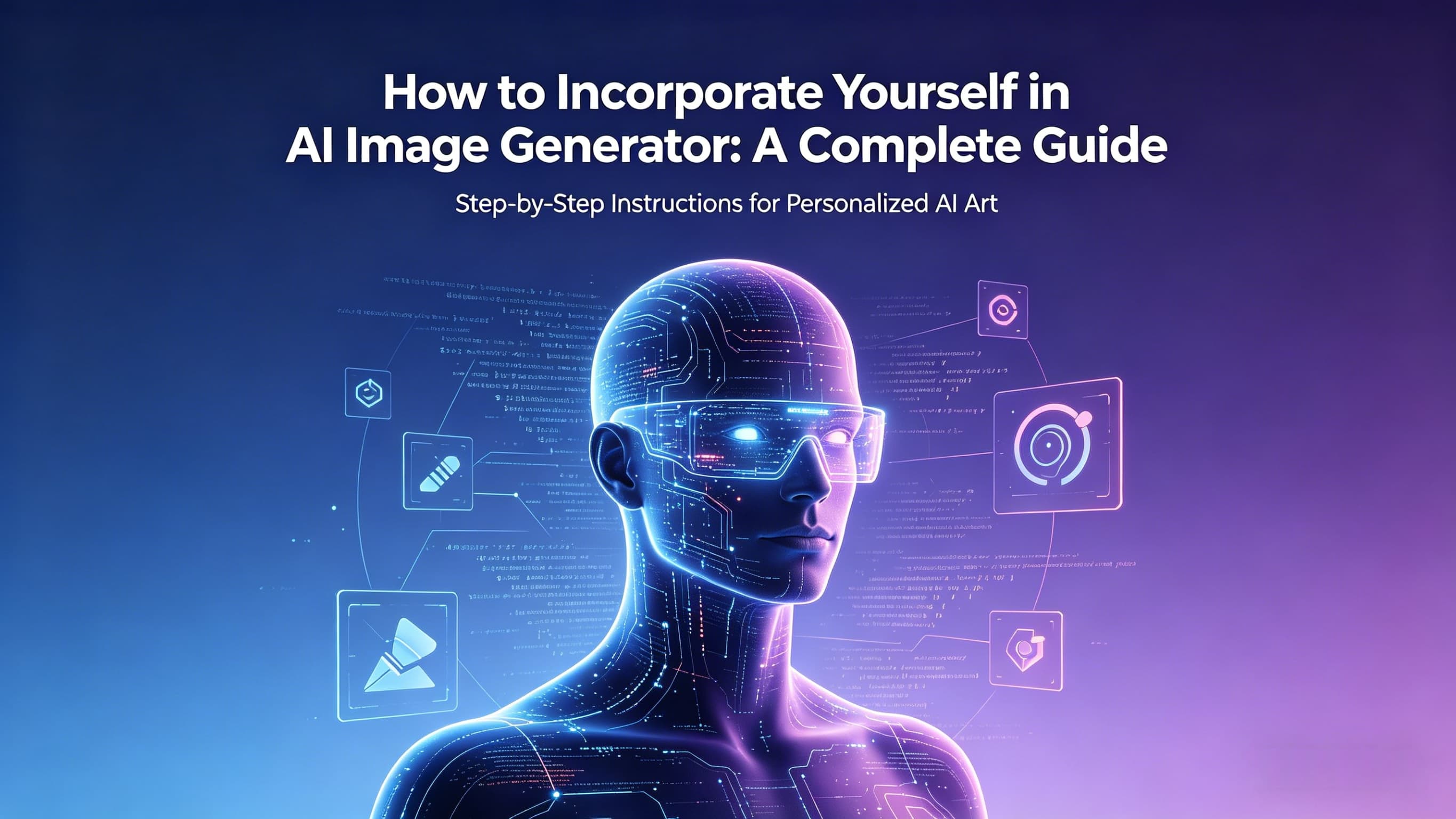
If you’ve ever tried to generate an AI image of yourself, you probably noticed one frustrating pattern: the results often feel… off. Maybe your eyes look slightly misaligned, your facial features are distorted, or your expressions don’t feel natural. Even if everything technically “works,” the image can appear uncanny or artificial.
This isn’t a flaw of AI—it’s simply a matter of understanding how these tools work and how to give them the right input. With the right approach, you can produce images that are realistic, consistent, and true to your appearance. In this guide, we’ll walk through every step, from selecting your source photo to generating high-quality AI images using Visualero’s multiple image-generation models.
Why AI Images of Yourself Often Look Strange
The biggest challenge when incorporating yourself into AI-generated images is that AI doesn’t really “know” how your face should look in different contexts. These models work by predicting pixels based on learned patterns, not by reconstructing reality. When a static image is fed to the model, it has to guess how to represent depth, facial symmetry, and expression dynamics.
This predictive approach often produces almost-right results, which can be unsettling. It’s an example of the Uncanny Valley: when an image is almost realistic, but just slightly off, your brain immediately detects the inconsistencies. Even subtle issues, like slightly uneven eye positioning or minor texture distortions, can make an AI-generated image feel unnatural.
Choosing the Right Source Photo
Everything starts with the input. A clean, high-resolution photo dramatically improves the model’s output. Look for images with:
-
Sharp facial details
-
Even lighting, without harsh shadows
-
Minimal blur or compression artifacts
-
A relatively neutral expression
Avoid photos with exaggerated facial expressions, occluded features, or extreme angles. While AI models are powerful, they cannot magically fix a poor-quality image. Selecting the right source ensures that the AI has enough reliable information to reproduce your features accurately.
Writing Effective Prompts for Personalization
Your prompt is the AI’s instruction manual—it needs to describe you clearly but without overloading the model. Include:
-
Hair color and style
-
Eye color
-
Clothing or accessories (if relevant)
-
General background or mood
It’s important to balance specificity with simplicity. Too much detail can confuse the model and create artifacts, while too little detail may produce generic or unrecognizable results. Start with a concise prompt, generate a preview, and adjust iteratively.
Step-by-Step Workflow to Incorporate Yourself
Follow these practical steps to seamlessly incorporate yourself in an AI image generator, ensuring realistic results with minimal trial and error.
Step 1: Upload and Analyze Your Photo
After selecting your source photo, upload it to Visualero AI Image Generator. The platform supports multiple high-quality models, including GPT Image 2, Nano Banana 2, and more than ten others. Each model has unique strengths: GPT Image 2 is ideal for realistic human features, while Nano Banana 2 can produce creative or stylized results. Before generating, visually check your photo for facial alignment, lighting, and clarity.
Step 2: Choose the Model and Set Parameters
Select the model that best suits your goal. For realistic portraits, use GPT Image 2. If you want an artistic or fantasy interpretation, Nano Banana 2 or other stylized models are excellent options. Visualero simplifies parameter settings—noise reduction, color preservation, and texture smoothing are automatically optimized, minimizing the risk of distorted results.
Step 3: Generate a Low-Resolution Preview
Before committing to a high-resolution render, generate a small preview. This allows you to spot any subtle misalignments, unnatural shadows, or texture inconsistencies. At this stage, you can refine your prompt slightly, adjusting features like eye color, facial expression, or background elements. Previewing iteratively is far more efficient than repeatedly generating full-size images.
Step 4: Generate the High-Resolution Image
Once satisfied with the preview, generate the full-resolution image. Visualero’s AI automatically maintains motion stability, facial proportion, and texture fidelity. Unlike traditional AI tools, Visualero reduces the likelihood of the common “creepy” artifacts that often appear when trying to integrate yourself into AI-generated content.
Step 5: Post-Processing and Minor Adjustments
Although Visualero outputs are generally polished, minor refinements can enhance realism. Use subtle tools to adjust brightness, contrast, or color balance. Avoid over-editing—over-sharpening or heavy filters can make the image look artificial. The key is small, deliberate tweaks rather than aggressive adjustments.
Common Mistakes to Avoid
Even with a powerful AI generator, certain missteps can reduce quality. The most frequent errors include:
-
Low-quality source images – Blurry or compressed photos amplify AI prediction errors.
-
Overcomplicated prompts – Excessive detail in prompts can confuse the model and create distortions.
-
Ignoring facial symmetry – Misaligned eyes, lips, or other features lead to unnatural results.
-
Over-processing – Excessive post-editing can flatten textures and reduce realism.
By avoiding these pitfalls, you dramatically increase the likelihood of generating convincing images of yourself.
Advanced Tips for Consistency Across Multiple Images
If you want a series of AI-generated images, consistency is critical. Use the same model, similar prompt structure, and maintain uniform lighting across your source photos. This reduces AI variance and ensures a cohesive set of images. For professional projects or social media portfolios, consistent results make a substantial difference.
Why Visualero Stands Out
Visualero’s AI Image Generator excels in integrating real human features naturally. Its main advantages include:
-
Multiple high-quality models for diverse styles and fidelity
-
Automatic optimization of facial alignment and textures
-
Simplified workflow that minimizes guesswork and iterative trial-and-error
Practical experience shows that Visualero is particularly effective when dealing with low-resolution input, subtle facial features, or stylistic integration, where other generators often fail.
FAQ – Incorporating Yourself in AI Image Generators
1. Can I use any photo of myself in an AI image generator?
Technically yes, but quality matters. AI works best with high-resolution photos, even lighting, and clear facial details. Blurry or overly compressed images often produce distorted or unnatural results. For best outcomes, select a neutral expression and avoid extreme angles.
2. How do I make the AI-generated image look like me accurately?
Start with a high-quality source photo and write a concise, descriptive prompt including your hair color, eye color, and other distinct features. Avoid overly complex prompts—simple, clear instructions allow the model to reproduce your likeness more faithfully. Iterative previewing helps fine-tune the output.
3. Which AI model should I use to generate realistic images of myself?
Visualero provides multiple models, such as GPT Image 2 for realistic portraits or Nano Banana 2 for stylized variations. For authentic human likeness, GPT Image 2 generally gives the most reliable results, while creative models are ideal if you want an artistic interpretation.
4. Why does my AI image sometimes look unnatural or distorted?
Common causes include low-quality input photos, overcomplicated prompts, facial misalignment, or over-processing in post-editing. Even minor inconsistencies like uneven eyes or unnatural shadows can trigger the uncanny valley effect. Following best practices in photo selection and prompt writing greatly reduces these issues.
5. Can I generate multiple consistent images of myself for social media or portfolios?
Yes. Use the same source photo quality, similar prompts, and consistent model selection in Visualero. This ensures uniform lighting, facial proportion, and style across images, making your AI-generated portraits look cohesive and professional.
6. Is it safe to use AI-generated images of myself online?
Generally yes, but be mindful of privacy. Avoid uploading photos containing sensitive backgrounds or identifiable information you don’t want shared. Visualero processes images securely, but treating AI-generated images with the same caution as real photos is recommended.
Final Thoughts
Successfully incorporating yourself into AI-generated images is not about adding more effects or exaggerating features. The secret lies in careful preparation, subtle prompt writing, and using a tool that respects facial consistency and natural textures.
By choosing the right photo, refining your prompt iteratively, and leveraging Visualero’s advanced models, you can create images that feel authentic, natural, and visually compelling. This approach ensures that your AI-generated portraits are professional-quality while minimizing common pitfalls that make AI-generated content feel uncanny.
Share this article
Help others discover this content
Related Articles
View allHow to Make AI Video of Photo Without Looking Strange
Learn how to make AI video of photo without looking strange. Avoid common mistakes, improve realism, and create smooth, natural animations with simple steps.
How to Combine Two Images (3 Easy Ways That Actually Work)
Learn how to combine two images using simple methods like side-by-side layout, blending, or overlay. Includes Photoshop steps and an easier AI solution.
How to Upscale an Image in Photoshop Without Losing Quality
A practical guide on how to upscale an image in Photoshop without losing quality using best settings, workflow tips, and common mistakes to avoid.
Upscale Images to Crystal Clear Quality
Enhance low-resolution images to stunning 4K quality. Perfect for printing, social media, and professional use.