
How to Make AI Video of Photo Without Looking Strange
If you’ve ever tried turning a photo into an AI video, you’ve probably had this exact reaction:
“Why does this look… kind of creepy?”
The face moves—but not quite right. The eyes blink—but feel off. And somehow, even if everything is technically “working,” the result just doesn’t feel natural.
This is one of the biggest frustrations with AI video tools right now.
Most AI photo-to-video tools don’t fail because the technology is bad. They fail because of the wrong inputs, unrealistic motion, or simply pushing the effect too far.
And once you understand that, everything changes.
Why AI Videos From Photos Look Strange (And Why It’s Hard to Fix)
The core issue is simple:
AI doesn’t actually know how your photo should move.
It’s not reconstructing real motion—it’s predicting it.
When you upload a static image, the model has to “guess”:
-
how the face would animate
-
how expressions should shift
-
how different parts move relative to each other
And most of the time, those guesses are almost right—which is exactly why they feel so unsettling.
Because the closer something gets to real—but not quite—the more noticeable the flaws become.
The Uncanny Valley Effect in AI-Generated Videos
This is a classic example of the Uncanny Valley.
When something looks clearly artificial, your brain accepts it.
But when it looks almost real—yet slightly off—you immediately feel that something is wrong.
That’s why even small issues like:
-
slightly delayed blinking
-
uneven facial movement
-
tiny distortions in texture
can make an AI video feel unnatural.
And here’s the part most people miss:
Trying to “fix” this with more motion or stronger effects usually makes it worse—not better.
What Actually Breaks Realism (Real Failure Cases)
From real usage, most “weird-looking” AI videos fall into a few predictable patterns.
Facial warping is one of the most common. You’ll see the eyes or mouth subtly shift position between frames, even when the head stays still. It’s not obvious at first—but once you notice it, the whole video feels unstable.
Then there’s unnatural blinking. Sometimes the blink timing is slightly off, or the eyelids don’t move symmetrically. Humans are extremely sensitive to eye movement, so even tiny inconsistencies feel wrong.
And finally, there’s motion stiffness. Either nothing moves enough—making the image feel frozen—or too much moves, which makes it look exaggerated and artificial.
Recognizing these patterns is important, because once you can identify them, you can avoid causing them.
What Makes an AI Video Look Natural Instead of Weird
If you want your AI video to feel realistic, you’re not trying to add more detail—you’re trying to avoid breaking realism.
There are three things that matter more than anything else.
Motion Consistency: Why Small Movements Matter More Than Big Ones
Natural motion is subtle.
In real life, faces don’t jump between positions—they transition smoothly. When AI exaggerates movement—even slightly—it becomes noticeable immediately.
A small head tilt feels natural. A larger motion quickly starts to feel synthetic.
Facial Stability: The #1 Reason AI Videos Feel “Off”
Your brain is extremely sensitive to faces.
Even minor inconsistencies—like slight misalignment between frames—can completely break realism.
This is why many tools fail: they generate motion, but they don’t maintain structure.
Lighting and Texture: The Details Your Eyes Notice Instantly
Lighting inconsistency is one of the fastest ways to ruin realism.
If shadows shift unnaturally or skin texture becomes too smooth or too sharp during motion, the result feels artificial—even if everything else is correct.
How to Make AI Video of Photo Without Looking Strange (Step-by-Step)
There’s no perfect workflow, but this approach consistently produces more natural results.
The key is not just what you do—but what you avoid.
Step 1: Choose a High-Quality Photo (This Matters More Than You Think)
Everything starts here.
If your source image is low quality, the AI won’t fix it—it will amplify the flaws.
Look for:
-
clear facial details
-
even lighting
-
minimal blur
-
neutral or relaxed expressions
A clean input reduces how much the AI has to “guess.”
Step 2: Keep Motion Subtle to Avoid Unnatural Results
This is the most common mistake.
People assume more motion = better video.
In reality:
More motion = more errors.
Subtle movement almost always looks more natural than dramatic animation.
Step 3: Avoid Over-Animating Faces and Expressions
Facial animation is where most AI tools struggle.
If you push:
-
strong emotions
-
exaggerated mouth movement
-
rapid expression changes
you’ll start seeing distortions almost immediately.
In most cases, if something looks off, reducing motion fixes it.
Step 4: Generate the AI Video (What Actually Happens)
Behind the scenes, the AI is:
-
predicting intermediate frames
-
estimating motion paths
-
reconstructing facial transitions
This process is probabilistic—not precise.
Which means even small input differences can change the result significantly.
Step 5: Review at Normal Playback Speed
Don’t judge based on preview frames.
Always watch at normal speed.
That’s when you’ll notice:
-
timing issues
-
subtle flickering
-
unnatural transitions
If it feels slightly off, it usually is.
The Easiest Way to Make AI Videos Look Natural (Without Manual Editing)
If you’ve tried adjusting settings manually, you’ve probably noticed how unpredictable it can be.
That’s because most critical factors—like motion smoothing and facial stability—are not easy to control directly.
A more reliable approach is:
Use a tool that minimizes these errors automatically.
How to Use Visualero AI Video Generator for More Natural Results
Instead of adding more effects, tools like Visualero focus on reducing failure points.
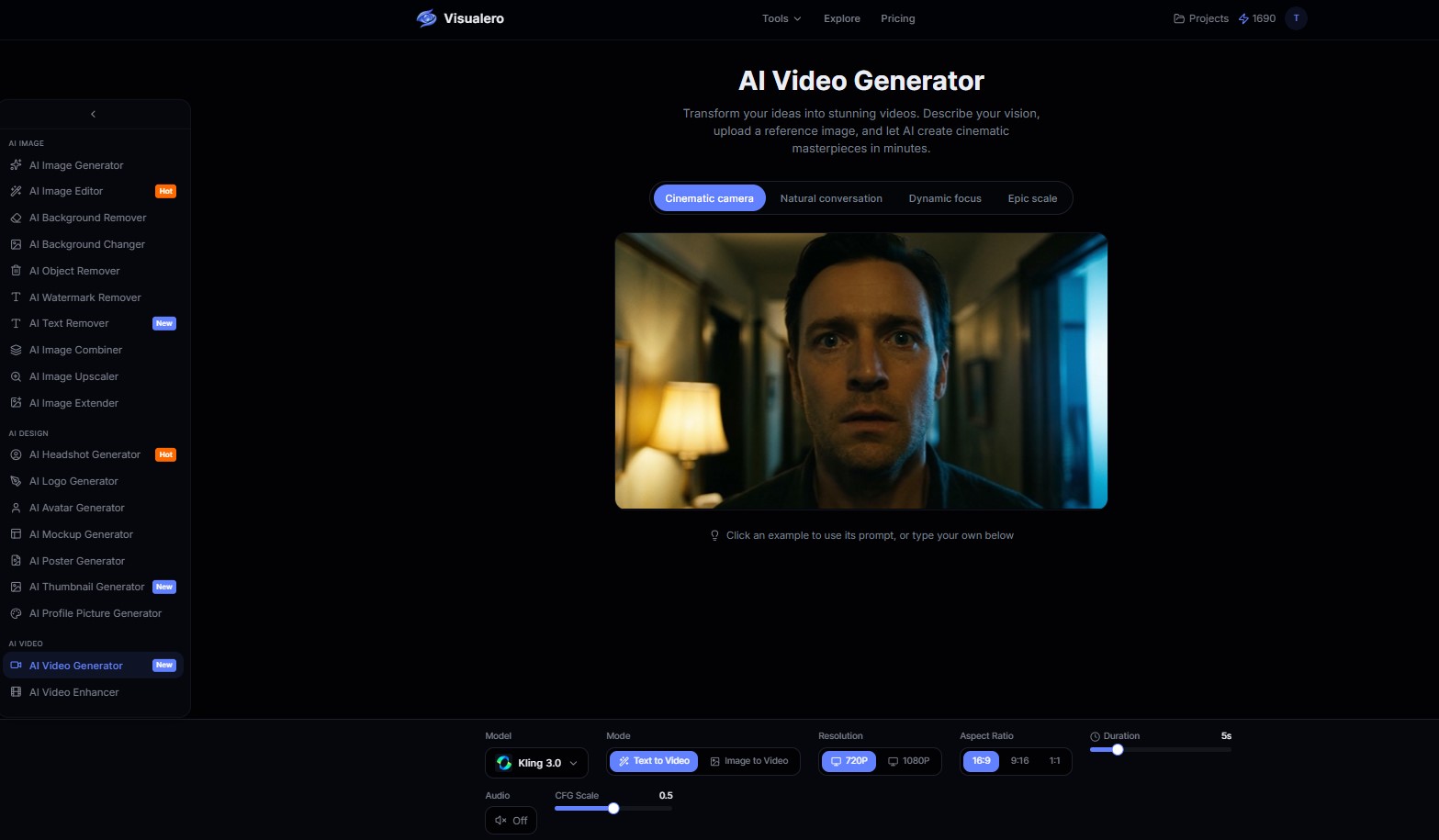 From practical use, the biggest improvement comes from how it handles:
-
motion smoothing
-
facial consistency
-
frame-to-frame stability
It doesn’t try to exaggerate motion—it keeps it controlled.
And that’s exactly why the output looks more natural.
Simple 3-Step Workflow
The process is straightforward:
-
Upload your photo
-
Let the AI generate motion automatically
-
Download the final video
No parameter tuning. No guesswork.
Where It Actually Makes a Difference
You’ll notice better results especially when:
-
the original image is low resolution
-
you need subtle, realistic animation
-
facial details matter
These are exactly the situations where most tools start to break.
Common Mistakes That Make AI Videos Look Weird
Even with a good workflow, small mistakes can ruin everything.
Using low-quality images forces the AI to guess too much, which leads to artifacts.
Adding too much motion is the biggest issue—this alone causes most unnatural results.
Ignoring facial alignment creates subtle distortions that become obvious during playback.
And over-processing the image (too much sharpening or filters) often removes natural texture, making the final video look artificial.
When AI Videos From Photos Still Won’t Look Natural
There are cases where no workflow can fully fix the result.
For example:
-
extremely low-resolution images
-
strong angles or occluded faces
-
complex cinematic motion
In these situations, the limitation isn’t the tool—it’s the input.
Recognizing this early can save a lot of time.
Final Thoughts: Natural AI Videos Come From Restraint
Most people assume better results come from adding more—more motion, more effects, more detail.
In reality, it’s the opposite.
The most natural-looking AI videos are the ones where fewer things go wrong.
If you focus on:
-
clean input
-
subtle motion
-
stable facial structure
you’ll already outperform most results online.
And when you combine that with a tool designed to reduce errors instead of amplify them, the difference becomes obvious.
That’s when AI videos stop looking strange—and start feeling real.
Share this article
Help others discover this content
Related Articles
View all
How to Incorporate Yourself in AI Image Generator: A Complete Guide
Struggling to make AI-generated images look like you? This guide explains how to incorporate yourself in an AI image generator, select the right photo, and use Visualero’s models for realistic results.
How to Combine Two Images (3 Easy Ways That Actually Work)
Learn how to combine two images using simple methods like side-by-side layout, blending, or overlay. Includes Photoshop steps and an easier AI solution.
How to Upscale an Image in Photoshop Without Losing Quality
A practical guide on how to upscale an image in Photoshop without losing quality using best settings, workflow tips, and common mistakes to avoid.
Create Amazing Videos with AI
Generate and enhance videos effortlessly. From AI video generation to upscaling, transform your video content with ease.