
How to Combine Two Images (3 Easy Ways That Actually Work)
Combining two images sounds simple—until you try it.
Sometimes you just want to put two pictures side by side. Other times, you want them to blend together seamlessly. And occasionally, you just need to place one image on top of another.
The problem is: these are three completely different tasks.
That’s why many people struggle when searching how to combine two images—because the method depends on what you’re actually trying to achieve.
In this guide, I’ll walk you through the real ways to combine images, based on actual use—not just theory.
Quick Answer: How to Combine Two Images
To combine two images, you can:
-
Place them side by side using a canvas resize method
-
Merge them using blending modes (for creative effects)
-
Overlay one image on top of another
-
Or use an AI tool to combine images automatically
The best method depends on whether you want to stitch, merge, or overlay images.
3 Ways to Combine Images (And When to Use Each)
Before jumping into tools, it’s important to understand what “combine images” actually means.
Because in practice, people are usually trying to do one of these:
1. Combine Images Side by Side
This is the most common case.
You’re creating:
-
before/after comparisons
-
social media posts
-
product comparisons
👉 Clean, structured layout
2. Merge Images Together (Blending)
This is more creative.
You’re trying to:
-
blend two photos into one
-
create double exposure effects
-
mix textures or backgrounds
👉 More design-oriented
3. Overlay One Image on Another
This is practical and fast.
You might:
-
add a logo or watermark
-
place an object onto another image
-
combine layers for simple edits
👉 Utility-focused
Understanding this difference makes everything easier—because now you’re choosing the right method instead of guessing.
Method 1: Combine Two Images Side by Side (Most Common)
If your goal is to combine images side by side, this is the simplest and most reliable method.
In Photoshop (or any editor), the process is straightforward.
First, you expand the canvas to fit both images. Then you drag each image into position.
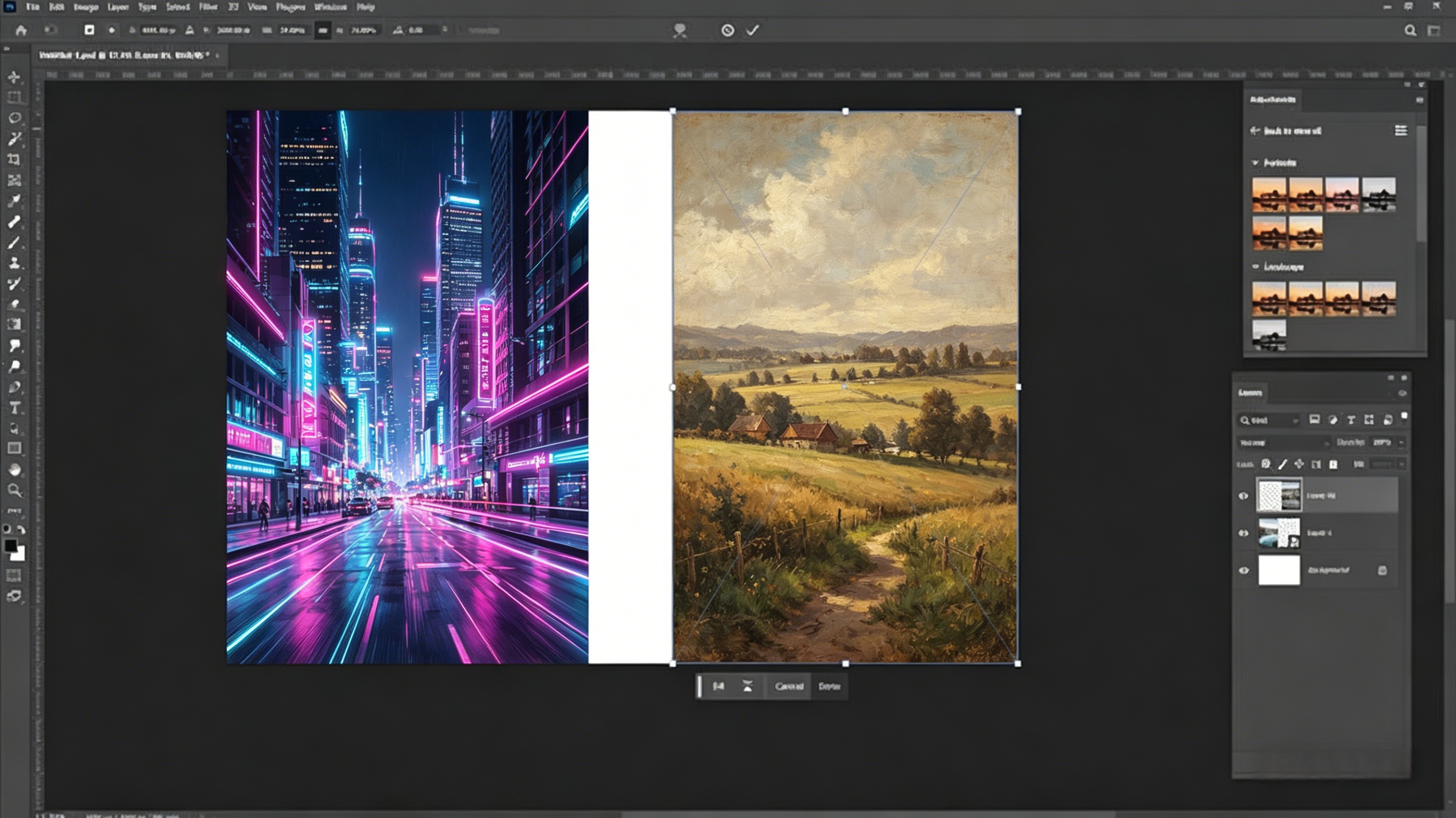 Basic workflow:
-
Open one image
-
Go to Image → Canvas Size and increase width (or height)
-
Drag the second image into the canvas
-
Align both images side by side
What matters here isn’t the tool—it’s alignment and spacing.
From experience, the biggest issue people run into is inconsistent sizing. If the images don’t match dimensions, the result looks unbalanced.
So before combining, it’s worth resizing both images to similar height or width.
Method 2: Merge Two Images Together (Blending)
If you want to combine two photos into one, this is where blending comes in.
Instead of placing images next to each other, you’re layering them.
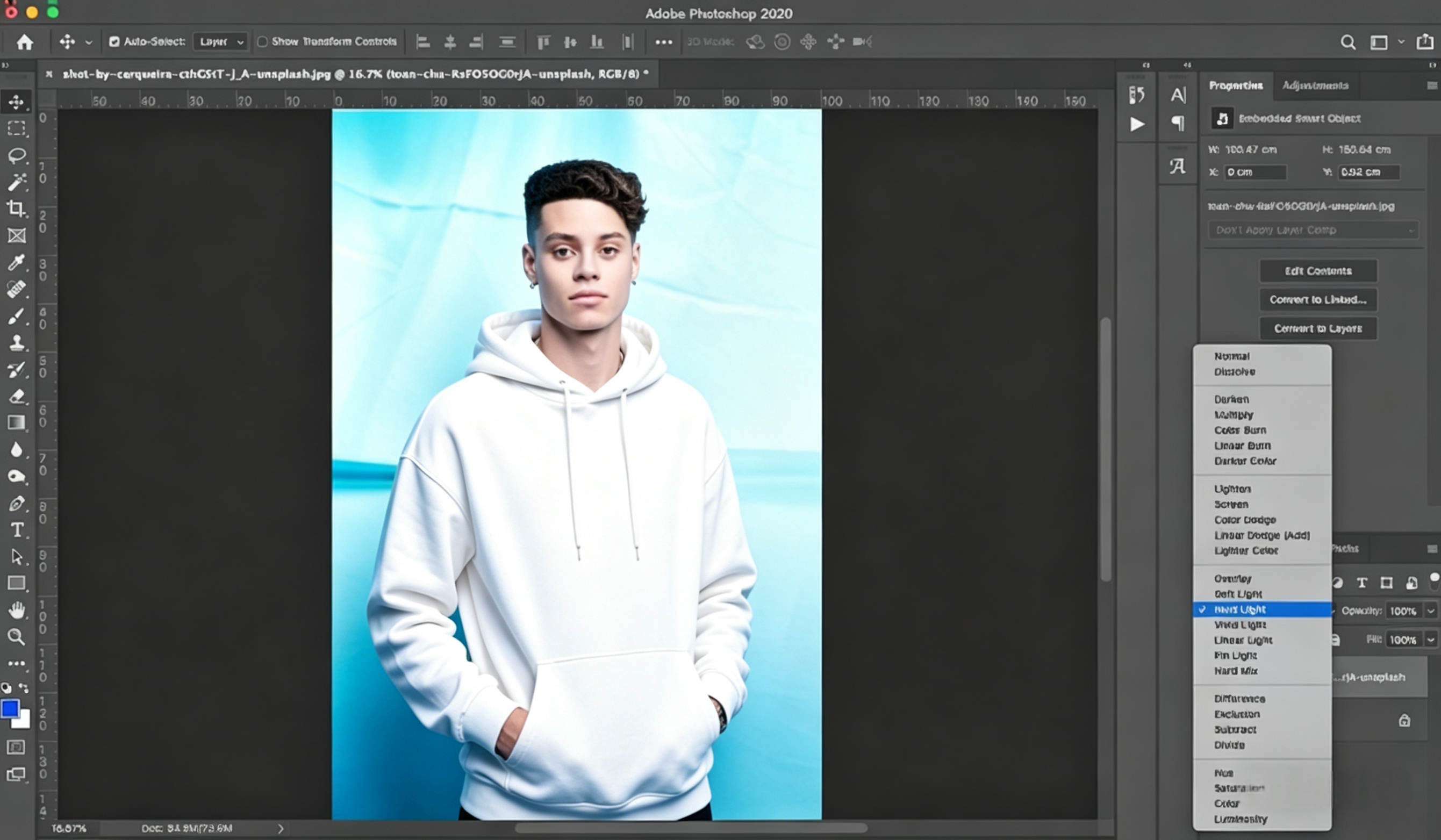 In Photoshop, this usually involves:
-
placing one image on top of another
-
adjusting opacity
-
using blending modes like Overlay or Soft Light
-
refining edges with layer masks
At first, it feels unintuitive.
But once you try it, you’ll realize this is how most “creative” image combinations are done.
The key insight here is that blending isn’t about precision—it’s about balance. You’re controlling how much of each image shows through.
Method 3: Overlay Images (Fast and Practical)
If your goal is simply to put one picture on another, overlay is the fastest method.
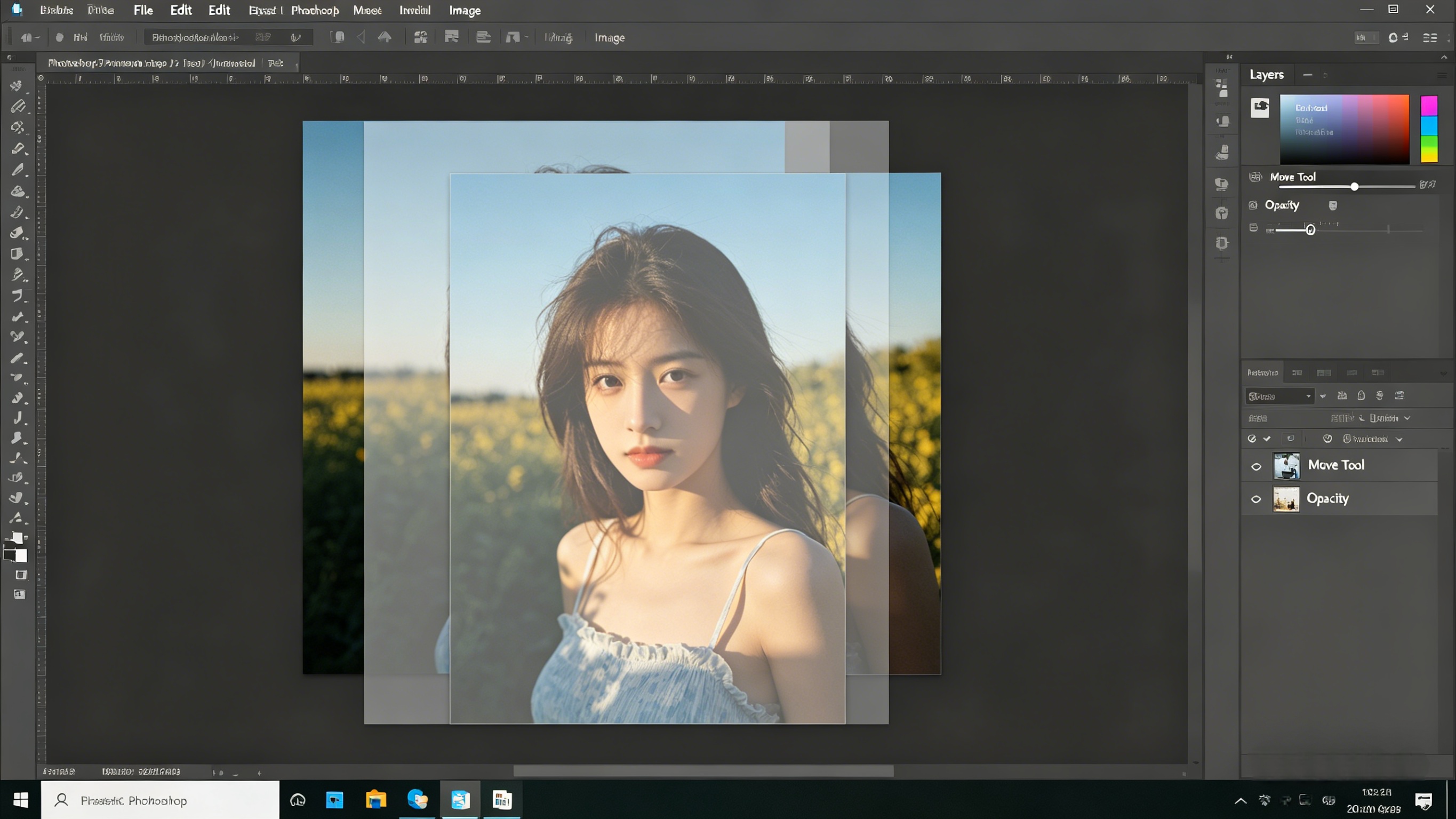 This is commonly used for:
-
logos
-
watermarks
-
simple compositions
The process is minimal:
-
import both images
-
place one above the other
-
resize and position
-
adjust opacity if needed
No complex editing required.
This is also where many online tools perform surprisingly well, because the task itself is simple.
A Much Easier Way: Combine Images Automatically with AI
Here’s where things change.
If you don’t want to deal with layers, canvas adjustments, or blending modes, AI tools can simplify the process significantly.
Tools like Visualero AI Image Combiner are designed specifically for this.
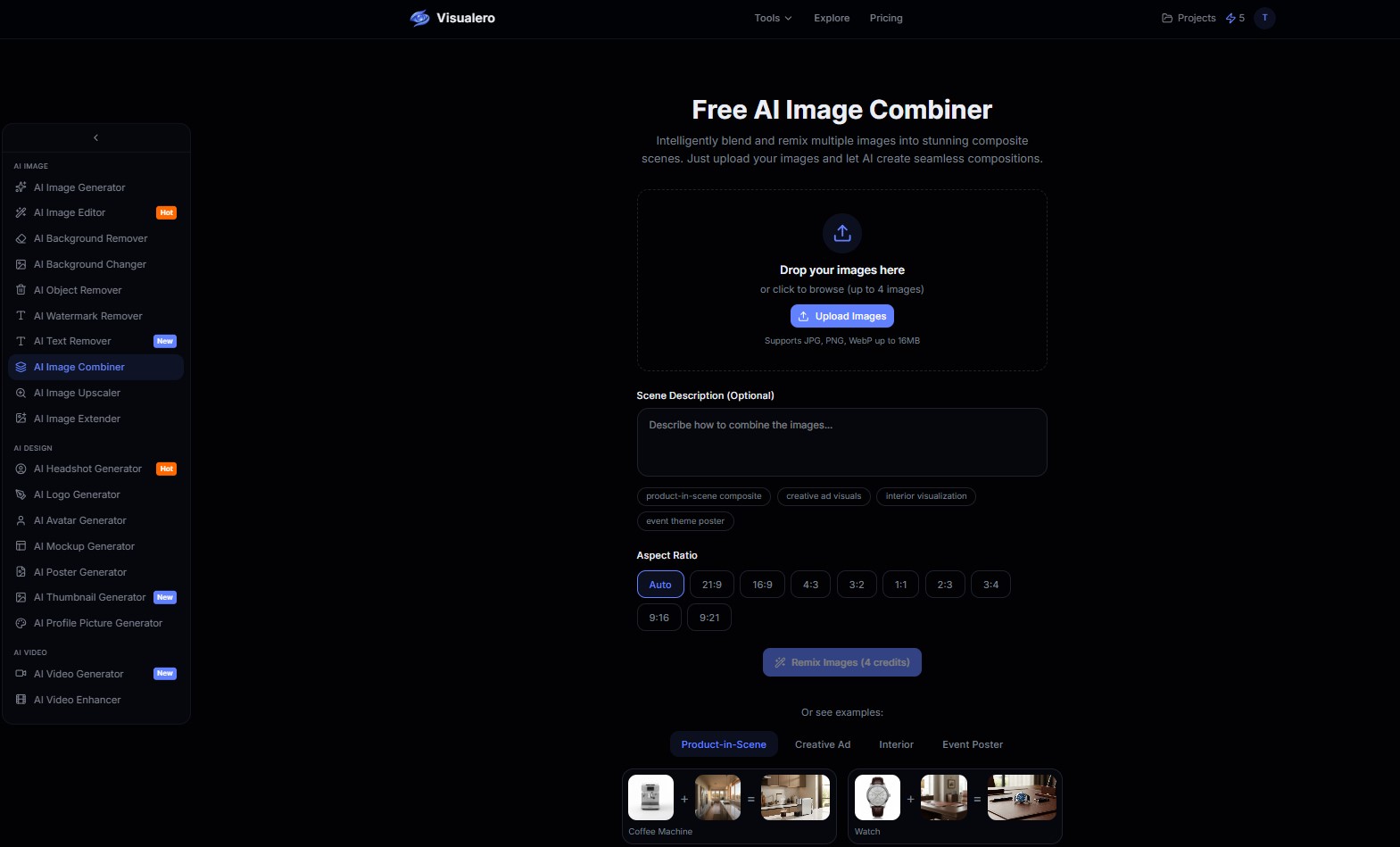 Instead of manually aligning or blending images, you simply:
-
upload your images
-
let the AI detect structure and layout
-
generate a clean combined result automatically
In practice, this saves a lot of time—especially if you’re not working in Photoshop regularly.
Where Visualero Works Better Than Traditional Methods
From actual use, the advantage becomes clear in certain situations.
You’ll notice a difference when:
-
images have different sizes or proportions
-
alignment needs to look clean quickly
-
you want a result without manual adjustments
Instead of tweaking layers and spacing, the tool handles it in one step.
It’s not replacing Photoshop—it’s removing the need for it in simpler workflows.
Photoshop vs Online Tools vs AI: Which Should You Use?
Once you’ve tried these methods, the decision becomes much clearer.
Photoshop gives you full control, but requires time and experience. Online tools are fast, but often limited. AI tools sit in between—fast, but more intelligent.
In practice:
-
Use Photoshop for detailed or creative work
-
Use online tools for simple overlays
-
Use AI tools when you want speed + clean results
It’s less about which is “better,” and more about what you need in that moment.
Common Mistakes When Combining Images
Most issues don’t come from the tool—they come from small mistakes.
-
Combining images of different sizes without resizing first can break alignment.
-
Overusing blending modes can make images look unnatural.
-
Ignoring spacing and composition often leads to cluttered results.
-
Trying to force one method for all use cases usually leads to frustration.
Fixing these makes a bigger difference than switching tools.
FAQ
1. How do I combine two images into one?
You can either place them side by side, merge them using blending, or overlay one image on top of another.
2. Can I combine images without Photoshop?
Yes. Many online and AI tools allow you to combine images quickly without manual editing.
3. What is the easiest way to combine images?
Using an AI-based tool is usually the fastest method, as it removes the need for manual adjustments.
4. How do I combine images side by side?
Expand the canvas size and position both images next to each other, or use an automatic layout tool.
Final Thoughts
Learning how to combine two images isn’t about mastering one tool—it’s about understanding the different ways images can be combined.
Once you know whether you’re stitching, blending, or overlaying, the process becomes much simpler.
And in many cases, the fastest solution isn’t doing more work—it’s choosing a tool that removes the work entirely.
Share this article
Help others discover this content
Related Articles
View all
How to Incorporate Yourself in AI Image Generator: A Complete Guide
Struggling to make AI-generated images look like you? This guide explains how to incorporate yourself in an AI image generator, select the right photo, and use Visualero’s models for realistic results.
How to Make AI Video of Photo Without Looking Strange
Learn how to make AI video of photo without looking strange. Avoid common mistakes, improve realism, and create smooth, natural animations with simple steps.
How to Upscale an Image in Photoshop Without Losing Quality
A practical guide on how to upscale an image in Photoshop without losing quality using best settings, workflow tips, and common mistakes to avoid.
Combine Images with AI
Merge, collage, and combine multiple images seamlessly. Create stunning compositions with AI-powered blending and layout tools.